SlideLayout
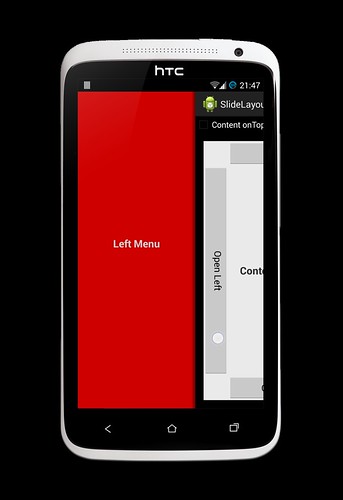
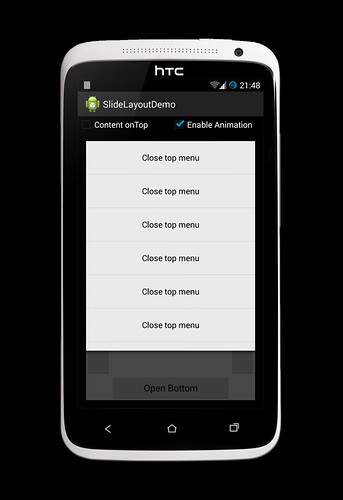
SlideLayout is an Open Source Android library that allows developers to easily add SlideMenu feature. It supports 4 menu at each side of content view concurrently.
A demo app can be found on Google PlayStore
 |
 |
|---|---|
 |
 |
I would appreciate any kind of help to improve this library. Thanks
Usage
Usage in XML
You must declare SlideLayoutStyle in styles.xml:
    <style name="SlideLayoutStyleDemo" parent="@style/SlideLayoutStyleDefault">
        <item name="sl_dragEnable">true</item>
        <item name="sl_leftMenuStyle">@style/LeftSlideMenuStyleDemo</item>
        <item name="sl_rightMenuStyle">@style/RightSlideMenuStyleDemo</item>
        <item name="sl_topMenuStyle">@style/TopSlideMenuStyleDemo</item>
        <item name="sl_bottomMenuStyle">@style/BottomSlideMenuStyleDemo</item>
        <item name="sl_menuStyle">@style/SlideMenuStyleDemo</item>
    </style>
Attributes
-
sl_dragEnable: enable drag menu from the side of content view. If disable, can only open menu by calling function
    public void openLeftMenu(boolean animation);

    public void openRightMenu(boolean animation);

    public void openTopMenu(boolean animation);

public void openBottomMenu(boolean animation);-
sl_leftMenuStyle: Left menu style -
sl_rightMenuStyle: Right menu style -
sl_topMenuStyle: Top menu style -
sl_bottomMenuStyle: Bottom menu style -
sl_menuStyle: Default menu styleand some SlideMenuStyle:
    <style name="SlideMenuStyleDemo" parent="@style/SlideMenuStyleDefault">
        <item name="sm_overDrag">false</item>
        <item name="sm_menuBorder">48dp</item>
        <item name="sm_menuOverDragBorder">0dp</item>
        <item name="sm_slideRatio">0.5</item>
        <item name="sm_menuShadow">8dp</item>
        <item name="sm_dragEdge">48dp</item>
        <item name="sm_touchSlop">16dp</item>
        <item name="sm_maxDim">0.7</item>
        <item name="sm_velocitySlop">500</item>
        <item name="sm_animDuration">800</item>
        <item name="sm_closeEdge">0.75</item>
        <item name="sm_animInterpolator">@android:anim/decelerate_interpolator</item>
    </style>
Attributes
-
sm_overDrag: Enable drag menu out of its size -
sm_menuBorder: The size of content view visible when menu openned, can be dimension or percent of content view's size -
sm_menuOverDragBorder: The size of overdrag region when menu dragged, can be dimension or percent of content view's size -
sm_slideRatio: The ratio of traveling distance between menu and content view -
sm_menuShadow: The size of shadow -
sm_dragEdge: The size of drag region, can be dimension or -1 (match_content) -
sm_touchSlop: The distance which menu start dragging -
sm_maxDim: The maximum Dimming value of below view. 0 means no Dimming at all. -
sm_velocitySlop: The velocity of fling which menu start opening -
sm_animDuration: The duration of opening and closing animation -
sm_closeEdge: The distance which menu auto close when stop dragging, can be dimension or percent of menu's size
Declare the following view on your xml layout:
    <com.rey.slidelayout.SlideLayout xmlns:android="http://schemas.android.com/apk/res/android"
        xmlns:app="http://schemas.android.com/apk/res-auto"
        style="@style/SlideLayoutStyleDemo"
        android:layout_width="match_parent"
        android:layout_height="match_parent"
        app:sl_contentChild="4"
        app:sl_leftMenuChild="0"
        app:sl_rightMenuChild="1"
        app:sl_topMenuChild="2"
        app:sl_bottomMenuChild="3">

        <TextView
            android:layout_width="match_parent"
            android:layout_height="match_parent"
            android:text="Left Menu"/>

        <TextView
            android:layout_width="match_parent"
            android:layout_height="match_parent"
            android:text="Right Menu"/>

        <TextView
            android:layout_width="match_parent"
            android:layout_height="match_parent"
            android:text="Top Menu"/>

        <TextView
            android:layout_width="match_parent"
            android:layout_height="match_parent"
            android:text="Bottom Menu"/>

        <TextView
            android:layout_width="match_parent"
            android:layout_height="match_parent"
            android:text="Content View"/>

    </com.rey.slidelayout.SlideLayout>
Attributes
-
sl_contentChild: index of content view in SlideLayout -
sl_leftMenuChild: index of left menu in SlideLayout -
sl_rightMenuChild: index of right menu in SlideLayout -
sl_topMenuChild: index of top menu in SlideLayout -
sl_bottomMenuChild: index of bottom menu in SlideLayout
The order of menu and content view in SlideLayout decides menu will be above (Google style) or below (Facebook style) content view.
Usage in Code
Declare SlideLayoutStyle in styles.xml:
    <style name="SlideLayoutStyleDemo" parent="@style/SlideLayoutStyleDefault">
        <item name="sl_dragEnable">true</item>
        <item name="sl_leftMenuStyle">@style/LeftSlideMenuStyleDemo</item>
        <item name="sl_rightMenuStyle">@style/RightSlideMenuStyleDemo</item>
        <item name="sl_topMenuStyle">@style/TopSlideMenuStyleDemo</item>
        <item name="sl_bottomMenuStyle">@style/BottomSlideMenuStyleDemo</item>
        <item name="sl_menuStyle">@style/SlideMenuStyleDemo</item>
        <item name="sl_contentChild">4</item>
        <item name="sl_leftMenuChild">0</item>
        <item name="sl_rightMenuChild">1</item>
        <item name="sl_topMenuChild">2</item>
        <item name="sl_bottomMenuChild">3</item>
    </style>
Use the following code:
    SlideLayout sl = new SlideLayout(context, null, R.style.SlideLayoutStyleDemo);
    sl.addView(leftMenuView);
    sl.addView(rightMenuView);
    sl.addView(topMenuView);
    sl.addView(bottomMenuView);
    sl.addView(contentView);
Note that you have to add view to SlideLayout in correct order specificed in style. If you want to attach SlideLayout to activity, use the followed function instead of addView(contentView)
public void attachToActivity(Activity activity, boolean attachToWindow);Developed By
- Rey Pham - pea5137@gmail.com
Credits
- SlideLayout is inspired by Cyril Mottier's post
Contributing
Want to contribute? You are welcome!